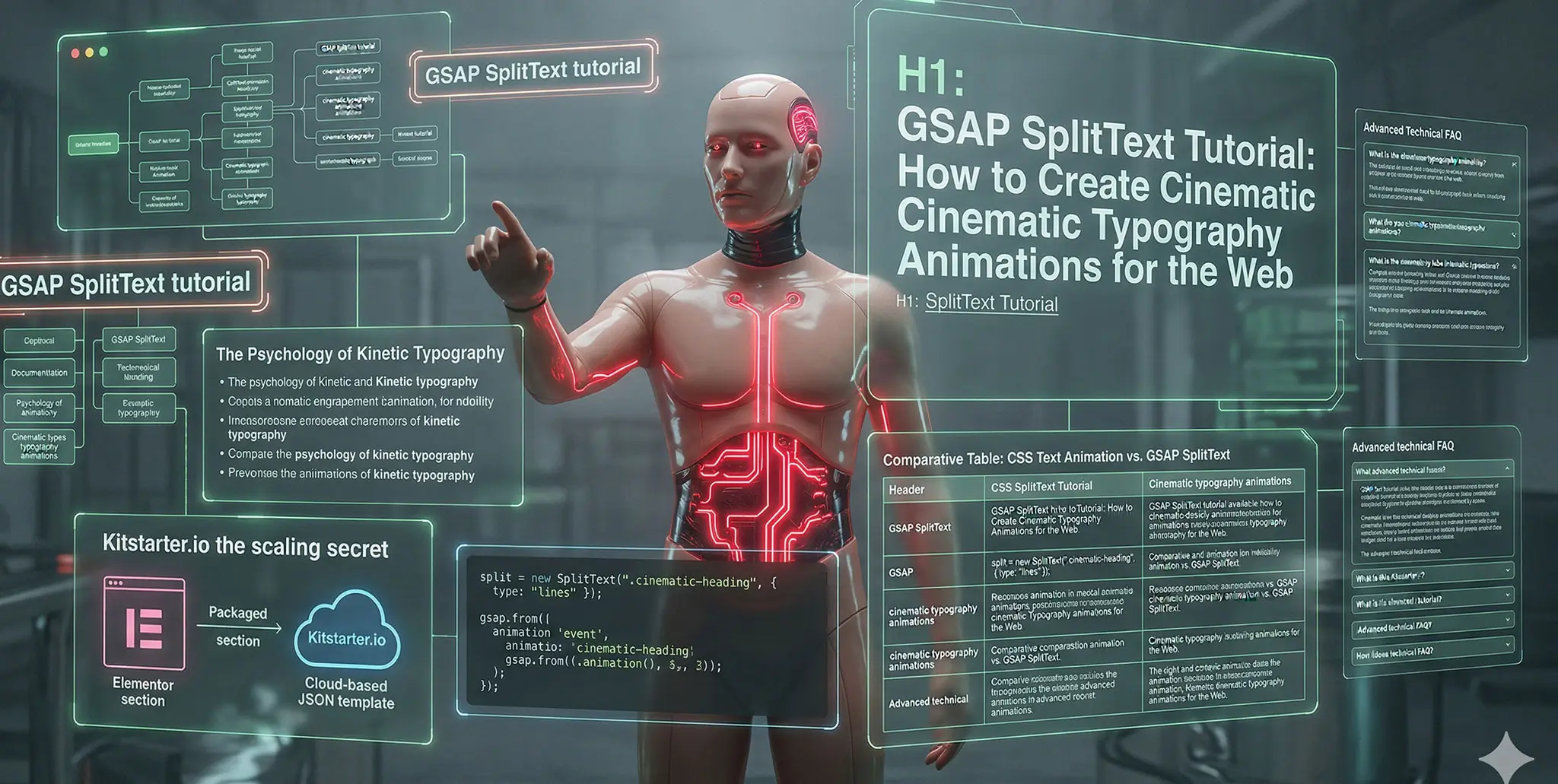

GSAP SplitText Tutorial: Cinematic Typography Animations for the Web

Back to Article

Typography is the voice of your digital design. If your website’s typography is static, your brand is whispering.

In the high-end web design market of 2026, users don’t just want to read your headlines; they want to experience them. Whether you are building a luxury real estate portfolio, a modern co-working space landing page, or a SaaS product site, the way your text enters the viewport dictates the user’s perception of your product’s value.

If you want to know how to create cinematic typography animations for the web with GSAP, you must master DOM manipulation. You cannot simply fade in an <h1> tag and call it a day.

In this ultimate GSAP SplitText tutorial, we are going to tear apart standard HTML text, animate it character by character, and engineer cinematic sequences. More importantly, I will show you how to take these complex JavaScript sequences and package them into reusable Elementor templates using Kitstarter.io, turning your code into a scalable business asset.

The Psychology of Kinetic Typography

Before we write code, we need to understand the intent.

When you watch a high-budget film trailer, the title cards don’t just appear. They emerge from the shadows, they track outward, or they slam into the screen. This builds tension and release.

Applying this to web design is called Kinetic Typography. When a massive headline staggers in line-by-line, it forces the user to read at the exact pace you dictate. You control their cognitive load. You command their attention. This level of polish signals to the user’s subconscious that they are interacting with a premium, expensive brand.

How GSAP SplitText Actually Works (The DOM Magic)

Here is the fundamental problem with HTML: You cannot animate the letter “A” independently if it is part of a standard <p> or <h1> tag. The browser only sees the whole block.

GSAP SplitText solves this by performing DOM surgery. When you run the plugin on a text element, it instantly breaks the text apart and wraps every line, word, or character in its own <div>.

  • <h1>Hello World</h1> becomes:

  • <h1><div class="word"><div class="char">H</div><div class="char">e</div>...</div></h1>

Once the text is split into these individual nodes, GSAP can target them with the .stagger() method, creating that cascading, fluid motion.

Technique 1: The "Line-by-Line" Masked Reveal

This is the bread and butter of agency-level design. It looks incredibly sophisticated but is mechanically simple. We split the text into lines, wrap those lines in an overflow: hidden container, and slide the text up from the bottom.

The GSAP Code

Place this inside your Elementor HTML widget or your theme’s custom JS file, ensuring you target your specific heading class (e.g., .cinematic-heading).

				
					document.addEventListener("DOMContentLoaded", () => {
  // 1. Split the text into lines
  const split = new SplitText(".cinematic-heading", { type: "lines" });
  
  // 2. Wrap each line in a masking div
  const maskWrapper = "<div style='overflow: hidden; display: inline-block;'></div>";
  $(split.lines).wrap(maskWrapper); // Using jQuery for quick wrapping, or vanilla JS

  // 3. Animate the lines up from the mask
  gsap.from(split.lines, {
    yPercent: 100, // Start pushed down out of view
    opacity: 0,
    duration: 1.2,
    stagger: 0.1, // 0.1s delay between each line
    ease: "power4.out",
    scrollTrigger: {
      trigger: ".cinematic-heading",
      start: "top 80%",
      toggleActions: "play none none reverse"
    }
  });
});


The result is text that appears to rise out of an invisible floor, creating a remarkably clean, architectural aesthetic.

Technique 2: The "Character Scramble" Decoder

For tech companies, digital agencies, or cyberpunk aesthetics, the “Decoder” effect is highly engaging. Instead of sliding in, the characters scramble through random letters and numbers before resolving into the actual headline.

The GSAP Code

This utilizes SplitText to isolate the characters, and GSAP’s ScrambleText plugin to handle the randomization.

				
					document.addEventListener("DOMContentLoaded", () => {
  const scrambleHeading = new SplitText(".decoder-heading", { type: "chars, words" });
  
  // Animate each character
  gsap.from(scrambleHeading.chars, {
    duration: 1,
    opacity: 0,
    scale: 0,
    y: 20,
    rotationX: 90,
    stagger: 0.02, // Very fast ripple
    ease: "back.out(1.5)"
  });

  // Optional: Add actual ScrambleText logic to the parent if desired
  // gsap.to(".decoder-subtext", {duration: 2, scrambleText:{text:"System Initialized", chars:"01X", revealDelay:0.5}});
});


The Scaling Secret: Productizing Typography with Kitstarter.io

Writing these typography animations is an art form. You spend hours tweaking the stagger timings, adjusting the power4.out easing, and ensuring it looks perfect on mobile.

But doing this from scratch for every new client is a terrible business model. At Pixloop Lab, we don’t rewrite code. We engineer assets. If you want to scale your revenue, you must transition from a coder to a template architect.

This is exactly how Kitstarter.io integrates with a high-end GSAP workflow:

  1. Engineer: Build your ultimate “Cinematic Hero Reveal” inside Elementor. Apply your typography styling and embed your GSAP SplitText JavaScript directly into the section via an HTML widget.

  2. Package: Select the Elementor section and click “Save to Kitstarter Cloud.” Kitstarter instantly bundles the Elementor structure, the CSS, and your complex GSAP logic into a single, secure JSON package.

  3. Deploy & Monetize: On your next project, open Kitstarter, search for “Cinematic Hero,” and import it. The HTML renders, the text splits, and the animation fires flawlessly in 10 seconds.

You can even bundle multiple GSAP typography sections together and sell access to your Kitstarter cloud library, turning your frontend skills into a passive software product.

Comparative Table: CSS Text Animation vs. GSAP SplitText

To understand why elite developers refuse to use native page-builder animations, look at the data:

FeatureNative CSS / Page BuilderGSAP SplitTextBusiness Impact
GranularityCan only animate the whole blockAnimate by Line, Word, or Char🟢 Premium, bespoke feel
SequencingGuesswork with CSS delayMathematical .stagger() control🟢 Guided user focus
ResponsiveBreaks when text wraps on mobileAuto-recalculates lines on resize🟢 Flawless Mobile UX
WorkflowRepetitive manual setupInstantly deployable via Kitstarter🟢 Massive time savings

Advanced Performance & Accessibility Rules

When manipulating the DOM this aggressively, you must follow the rules of professional development.

1. The Resize Bug (And How to Fix It)

If a user resizes their browser window (or rotates their phone), the text wraps differently. If you have already split the text into lines, the layout will shatter. You must revert() the split and rebuild it on resize.

				
					let mySplitText = new SplitText(".responsive-text", { type: "lines" });

window.addEventListener("resize", () => {
  mySplitText.revert(); // Put it back to normal HTML
  mySplitText = new SplitText(".responsive-text", { type: "lines" }); // Re-split based on new width
});


2. Accessibility (Screen Readers)

When you chop a word like “Hello” into <div class="char">H</div><div class="char">e</div>..., screen readers will read it out loud as “H – E – L – L – O.” This destroys accessibility.

Always wrap your split text in an aria-label container, and set the split characters to aria-hidden="true".

FAQ: Troubleshooting Text Animations

Q1: Is GSAP SplitText free to use?
A: SplitText is a premium plugin requiring a “Club GreenSock” membership. If you are building high-end client sites, the membership pays for itself instantly. However, if you need a free alternative for your templates, you can use the open-source library SplitType.js, which mimics the functionality and integrates perfectly with GSAP timelines.

Q2: Why is my text flashing in its final position before the animation starts?
A: This is a FOUC (Flash of Unstyled Content). The browser renders the HTML before your JavaScript has time to split and hide it.

  • Fix: In your CSS, set the initial state of the text container to visibility: hidden;. Then, in your GSAP script, add autoAlpha: 1 to the .to() tween. GSAP will automatically make it visible the millisecond the animation begins.

Q3: Can I use SplitText with Elementor’s dynamic tags (like Post Titles)?
A: Yes! Because GSAP runs on the client side after the DOM has loaded, it doesn’t care if the text was hardcoded or pulled dynamically from a WordPress database. As long as the CSS class matches, the animation will execute flawlessly on your dynamic templates.

Conclusion & Next Steps

Learning how to create cinematic typography animations for the web with GSAP completely changes the trajectory of your web design career.

You stop building static brochures and start directing digital experiences. By taking control of the DOM and choreographing how users consume your written content, you elevate the perceived value of every brand you touch.

But remember the golden rule of scaling an agency: Do the hard work once.

Write your SplitText sequences, refine your easing curves, and then immediately package those sections into Kitstarter.io. Stop coding from scratch. Build your proprietary library of cinematic assets, and dominate the premium template market.

more insights