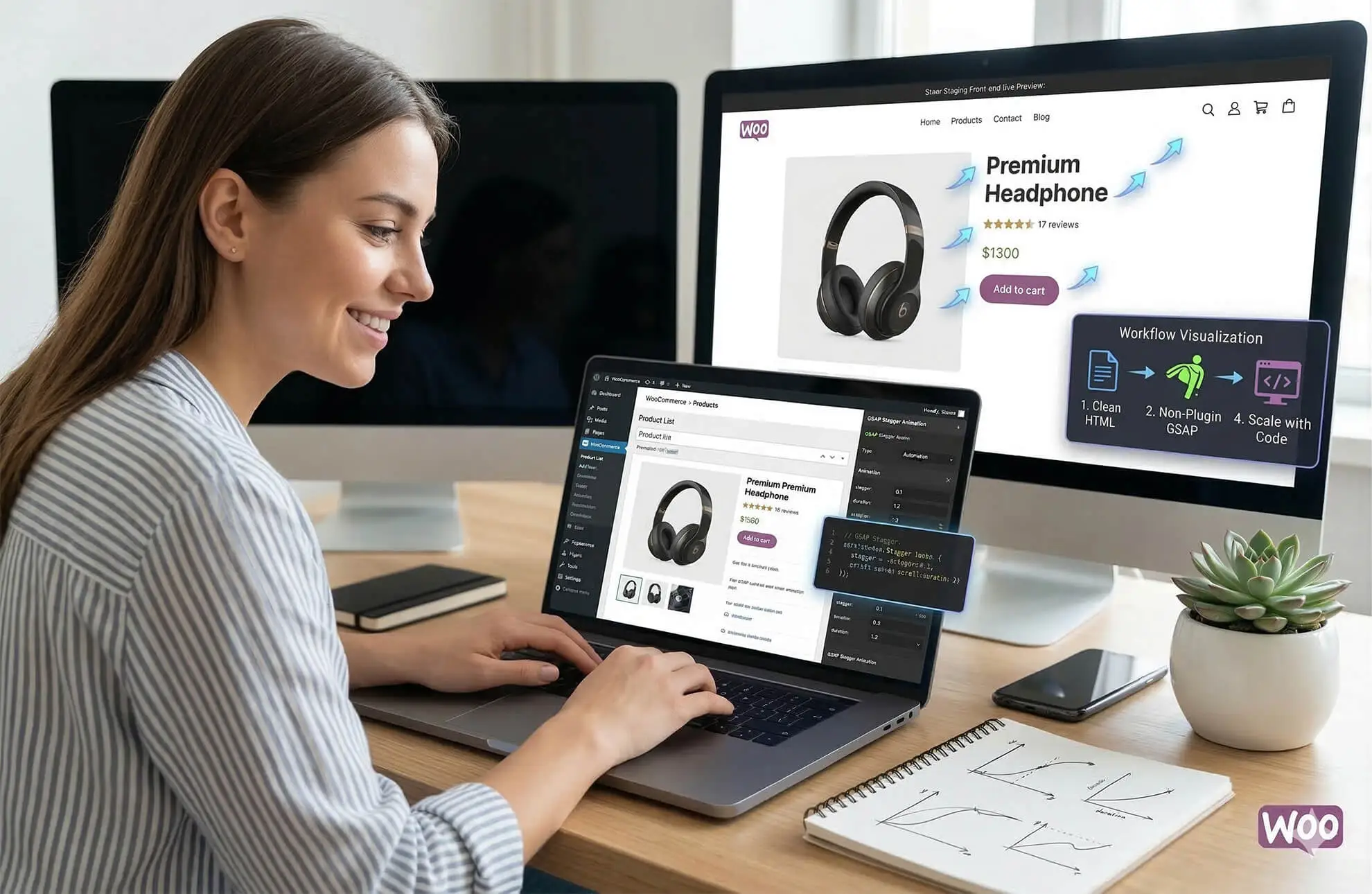

Let’s look at the reality of e-commerce in 2026: The default WooCommerce product page is a conversion killer.
You have a flat image on the left, a block of text on the right, and a static “Add to Cart” button. It looks exactly like a million other stores on the internet. When users see a generic, static layout, their brains subconsciously assign a lower perceived value to your product.
If you are selling premium physical goods, digital assets, or high-end services, your digital storefront must reflect that premium quality. If you are wondering how to animate WooCommerce product pages with GSAP for higher sales, you are already asking the right question.
In my work engineering premium web templates for Pixloop Lab, I never rely on static layouts. I use the GreenSock Animation Platform (GSAP) to orchestrate a buyer’s journey. In this guide, I will show you exactly how to animate WooCommerce product pages using raw, 60fps code to guide the user’s eye, reduce bounce rates, and ultimately, drive higher sales.
The Psychology of E-Commerce Motion
Before we write any JavaScript, we must understand why we are animating. We are not making things bounce just to look cool. Animation is a conversion tool.
Directing Attention: The human eye is biologically wired to track movement. By subtly animating your pricing or your primary Call-to-Action (CTA) as the user scrolls, you force them to look exactly where you want them to.
Perceived Value: Think of a high-end physical retail store. The lighting, the presentation, the smooth sliding doors—it all feels expensive. On the web, 60fps GPU-accelerated motion is the equivalent of that smooth sliding door.
Micro-Feedback: When a user interacts with a product variation (like changing a color), a rigid layout snap feels broken. A smooth GSAP transition reassures the user that the system is responding correctly.
Tactic 1: The "Magnetic" Add to Cart Button
The “Add to Cart” button is the single most important element on your page. A static button is easy to scroll past. A “Magnetic” button demands interaction.
When the user’s cursor gets close to the button, we use GSAP to gently pull the button toward the cursor. It creates a tactile, physical sensation that dramatically increases Click-Through Rates (CTR).
The GSAP Code
To keep performance pristine, we bypass standard event listeners and use GSAP’s optimized quickTo method. Add this script to your product page template:
document.addEventListener("DOMContentLoaded", () => {
const cartBtn = document.querySelector(".single_add_to_cart_button");
if(cartBtn) {
// Create high-performance setters
const xTo = gsap.quickTo(cartBtn, "x", {duration: 0.4, ease: "power3.out"});
const yTo = gsap.quickTo(cartBtn, "y", {duration: 0.4, ease: "power3.out"});
cartBtn.addEventListener("mousemove", (e) => {
const { clientX, clientY } = e;
const { height, width, left, top } = cartBtn.getBoundingClientRect();
// Calculate distance from the center of the button
const x = clientX - (left + width / 2);
const y = clientY - (top + height / 2);
// Pull the button (0.2 is the magnetic strength)
xTo(x * 0.2);
yTo(y * 0.2);
});
cartBtn.addEventListener("mouseleave", () => {
// Snap back to original position
xTo(0);
yTo(0);
});
}
});
This small detail separates amateur Shopify clones from elite, custom e-commerce experiences.
Tactic 2: Scrollytelling the Product Gallery
The default WooCommerce gallery is usually a small box with thumbnails. For high-ticket items, this is terrible UX.
Instead, we want to create a “Scrollytelling” experience. We pin the product details (Title, Price, Add to Cart) on the right side of the screen, while the user scrolls through massive, high-resolution product images on the left.
The GSAP Code
This requires modifying your WooCommerce single product layout slightly via CSS to sit side-by-side, and then applying ScrollTrigger.
gsap.registerPlugin(ScrollTrigger);
// Pin the product summary while the images scroll
ScrollTrigger.create({
trigger: ".woocommerce-product-gallery", // The left column
start: "top 100px", // Account for fixed headers
end: "bottom bottom",
pin: ".entry-summary", // The right column (Title, price, cart)
pinSpacing: false
});
// Fade in product images sequentially as they enter the viewport
const productImages = document.querySelectorAll(".woocommerce-product-gallery__image");
productImages.forEach((img) => {
gsap.from(img, {
scrollTrigger: {
trigger: img,
start: "top 80%",
toggleActions: "play none none reverse"
},
y: 50,
opacity: 0,
duration: 1,
ease: "power2.out"
});
});
By keeping the “Add to Cart” button perpetually visible (pinned) while the user evaluates the visual quality of the product, you drastically reduce purchase friction.
Tactic 3: Staggered Feature Reveals (Reducing Cognitive Load)
If your product has a long description with multiple features, hitting the user with a wall of text will cause them to bounce.
We use GSAP to reveal features progressively as the user scrolls down the description.
// Stagger the product feature list
gsap.from(".product-feature-item", {
scrollTrigger: {
trigger: ".product-features-section",
start: "top 75%",
},
y: 30,
opacity: 0,
stagger: 0.15, // 0.15s delay between each item
duration: 0.8,
ease: "back.out(1.7)" // Gives a premium "pop" effect
});
Comparative Table: Standard WooCommerce vs. GSAP-Enhanced
To understand the business value of this technical work, look at the difference in user experience metrics:
| Metric | Default WooCommerce | GSAP-Enhanced Product Page | Conversion Impact |
| “Add to Cart” Visibility | Lost on scroll | Pinned / Always in view | 🟢 High (Fewer abandoned sessions) |
| Visual Hierarchy | Flat, boring | Guided by ScrollTrigger | 🟢 High (Directs attention to value) |
| Perceived Brand Value | Generic Template | Bespoke, App-like UX | 🟢 High (Allows for premium pricing) |
| Cognitive Load | High (Wall of text) | Low (Staggered reveals) | 🟢 High (Easier to read features) |
Performance Warning: Don't Ruin Your Checkout Speed
Here is the expert warning: E-commerce speed is directly tied to revenue. A 1-second delay in mobile load times can drop conversions by 20%.
When developers try to animate WooCommerce pages using heavy plugins (like Slider Revolution or complex Elementor motion add-ons), they bloat the DOM. They load unused CSS and JavaScript that blocks the main thread, making the site feel sluggish.
Why raw GSAP wins:
File Size: The GSAP core and ScrollTrigger are incredibly lightweight when loaded via CDN.
GPU Acceleration: GSAP forces animations onto the Graphics Processing Unit. Always animate
transforms(likex,y,scale) andopacity. Never use GSAP to animatewidth,margin, ortop/lefton a product page, as this triggers “Layout Thrashing” and will cause your site to stutter.
FAQ: Integrating GSAP with WordPress E-Commerce
Q1: Does GSAP conflict with WooCommerce’s native JavaScript?
A: Generally, no. WooCommerce uses jQuery for things like variable product selections. GSAP is independent vanilla JavaScript. However, if you are animating DOM elements that WooCommerce replaces via AJAX (like a price updating when a variation is selected), you must re-initialize your GSAP triggers after the AJAX call completes.
Q2: How do I handle product variations and AJAX add-to-cart?
A: You can hook into WooCommerce’s jQuery events. For example, when a user adds an item to the cart, WooCommerce fires a added_to_cart event on the body. You can listen for this and trigger a custom GSAP success animation (like a checkmark popping up) to provide premium feedback.
jQuery('body').on('added_to_cart', function(){
gsap.fromTo(".cart-success-popup", {scale: 0, opacity: 0}, {scale: 1, opacity: 1, duration: 0.5, ease: "back.out"});
});
Q3: Is this safe for mobile users?
A: Mobile users account for over 60% of e-commerce traffic. Complex pinning can sometimes feel restrictive on a phone. Always wrap your complex ScrollTriggers in gsap.matchMedia() to serve a simpler, standard scrolling experience to viewports under 768px, preserving the intricate 3D or pinning effects strictly for desktop buyers.
Conclusion & Next Steps
Learning how to animate WooCommerce product pages with GSAP for higher sales is what separates standard “WordPress Installers” from elite Frontend Architects.
By intentionally designing your motion—pinning the buy button, making it magnetic, and fluidly revealing product details—you actively engineer a higher conversion rate. You are no longer just presenting information; you are designing a frictionless path to purchase.
Stop settling for the default layout. Write the code, optimize the performance, and watch your sales metrics shift.
If you want to see how these high-performance GSAP principles are applied to full-scale, professional architectures, explore the premium templates available at Pixloop Lab.


